Organise logins
Accounts and the details that go with them, in one list.
The details you need, where you can find them.
A place for login details and card information, opened with Face ID or Touch ID.

Terms and policies
Login details and card information are the things you need at the worst moment — and the things that should not be scribbled in a note. Pass Note keeps them organised, behind your device unlock.
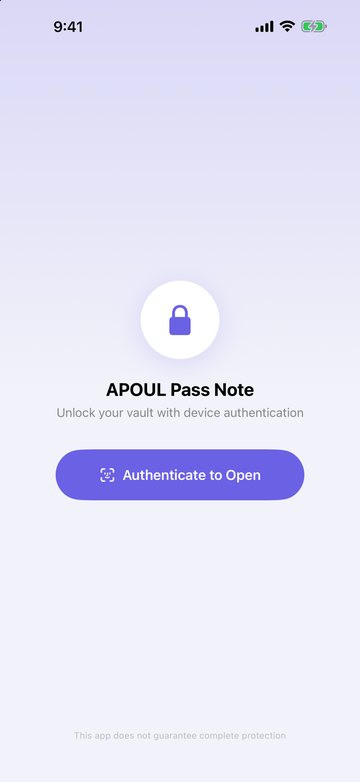
Screens prepared for the App Store with made-up sample data. The lock screen is in English; the others are in Japanese. Small details may differ from the current version.
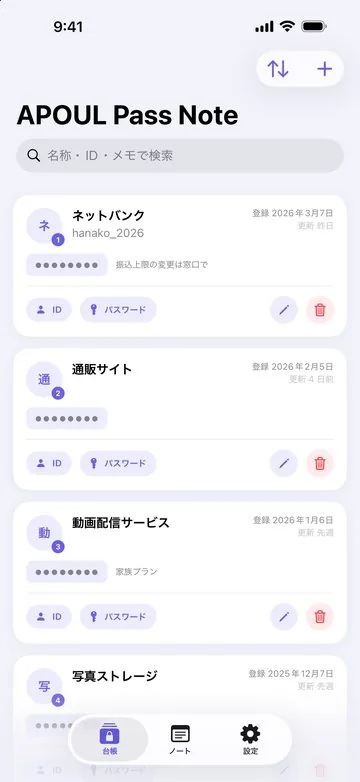
Accounts and the details that go with them, in one list.
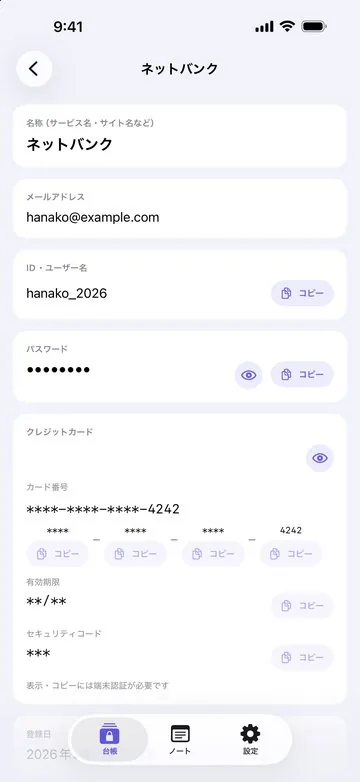
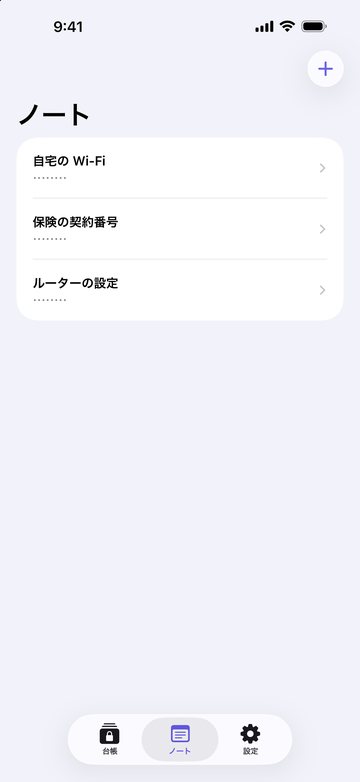
Card details kept apart, plus free-form notes shown masked.
Your device unlock guards the list.
Pull up the details without hunting.
Find the account you set up long ago.
Ordinary notes in one place, the careful ones in another.
You should be able to guess the next step without reading a manual.
Name it so you will recognise it later.
Face ID or Touch ID guards the list.
Open, authenticate, read.
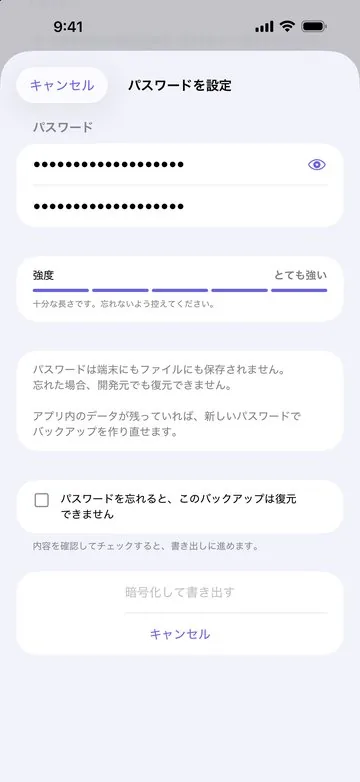
It locks with Face ID, Touch ID or your device passcode at launch and whenever you return to the app. Passwords, card details, memos and note bodies are stored encrypted; the key stays on this device and is released only after you verify yourself. Your data stays on your device: there is no cloud sync, and it is not included in iCloud or computer backups of the device. Backups you export are always encrypted with a password (AES-256); use this file to move to a new phone. Copied items are never shared to your other devices and clear automatically after the time you set. If you turn off the device passcode, the key is removed and your saved data can no longer be read, so export a backup before changing or resetting your phone.
The app shows no ads. It contains no advertising or analytics SDKs and does not ask for tracking permission. Its only network use is App Store purchases and restoring purchases; the entries and notes you keep are never sent anywhere.
The problems this app is built around, and what to settle before you bring it in.