In preparationMac

APOUL OCR Reader

From readable text to usable information.

Reads paper and PDFs and turns the result into text you can work with, rather than a picture of words.
In preparationBeing prepared for release. Price and distribution will be announced once fixed.
APOUL OCR Reader app icon
MacAPOUL OCR Reader
  • OCR for PDFs and images
  • Recognition runs in the cloud
  • Check on screen before saving
Why this exists

Text you can see but cannot use.

A scan or a photo holds words you cannot search, copy or paste. OCR Reader turns those into text, and shows you the result before anything is saved.

Screens

What it looks like.

Mac screens from a development build, in Japanese. The documents are made-up samples, and screens may change before release.
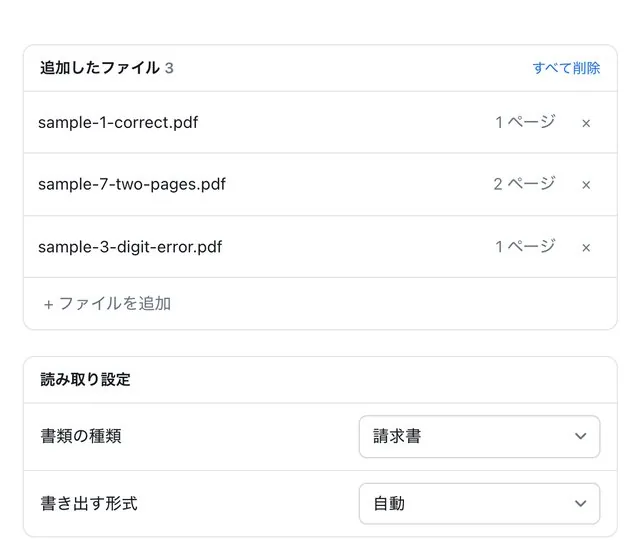
Add the PDFs to read and choose the document type
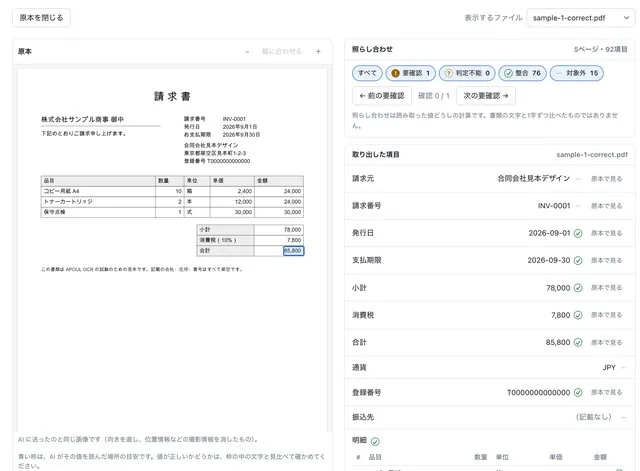
Check the extracted fields next to the original; a blue box shows where each value was read
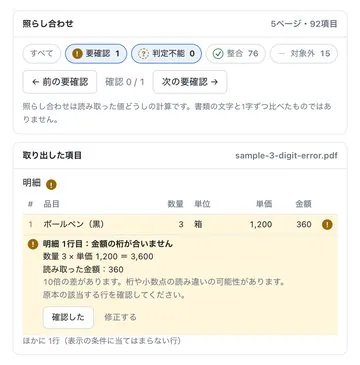
Cross-check: finds where quantity × price and the amount disagree, explains why, and lets you correct the field
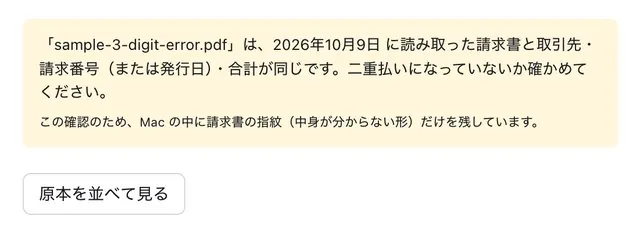
Warns when an invoice matches one you read before, so a double payment can be caught
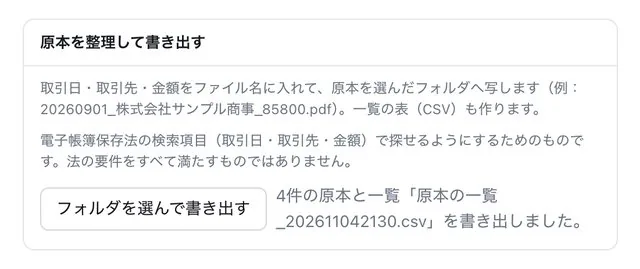
Exports originals named by date, partner and amount, with a CSV list
What it does

What it does.

01

Read PDFs and images

Extract text from scans and photographs.

02

Check and correct before saving

You can review and correct extracted fields (issuer, dates, amounts, etc.) in the app. Corrected values are used in exported files, and the original values are kept in the review record. The full transcribed text cannot be edited in the app; edit it in the exported file.

03

Document types

Pulls amounts, dates, partners and other fields from receipts, invoices and vouchers; the type is detected automatically or chosen by hand.

04

Japanese and English

The app can be switched between Japanese and English.

05

Cloud processing

Recognition runs on a server, not on your machine.

When you would use it

Situations, not features.

A scanned document you must quote

Get the text instead of retyping it.

A photographed page

Turn it into something searchable.

Paper that has to become data

Read once, reuse many times.

How it goes

The basic flow.

You should be able to guess the next step without reading a manual.

  1. 1
    Choose a document

    A PDF or an image.

  2. 2
    It is read

    Recognition runs in the cloud.

  3. 3
    Check, then save

    Nothing is stored until you accept it.

Data and trust

Your document leaves your machine.

Documents you select are sent to an APOUL server and processed by an external AI service. APOUL does not keep the content after processing, but if your documents cannot leave your organisation, this app is not suitable. Details of the external service will be given at release. If you only need to split a PDF, APOUL PDF Split does that on your own machine.

Questions

Common questions.

You can review and correct extracted fields (issuer, dates, amounts, etc.) in the app. Corrected values are used in exported files, and the original values are kept in the review record. The full transcribed text cannot be edited in the app; edit it in the exported file.
Yes. It is sent to an APOUL server and processed by an external AI service.
APOUL does not keep the content after processing. Details will be given at release.
Then this app is not suitable. Consider PDF Split, which works locally.